
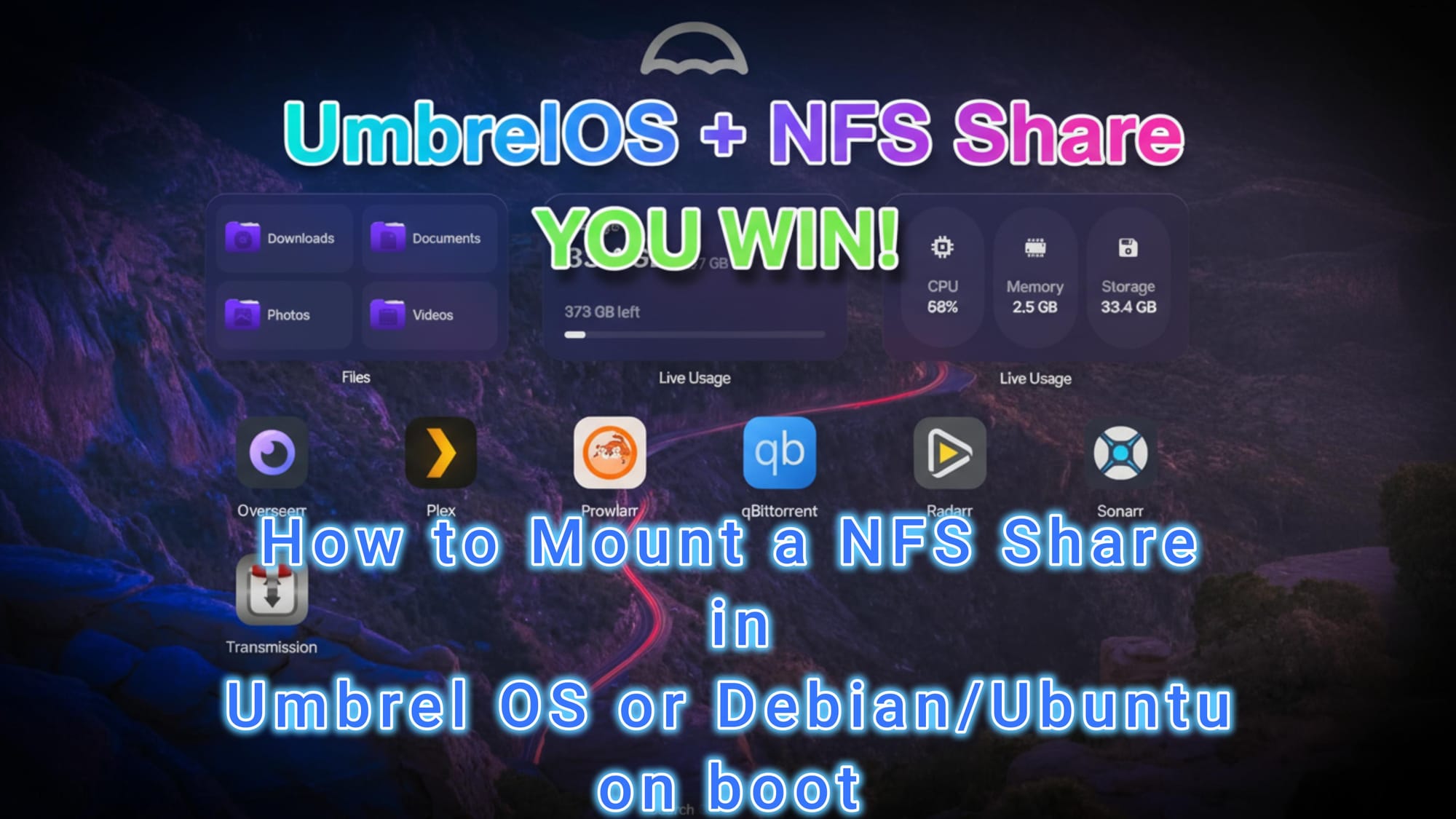
UmbrelOS + NFS Share = ULTIMATE ALL IN ONE 🔥#NFS #UMBRELOS
Welcome to the Channel.
This will be a mini how to mount a network share as a local folder in Linux.
The core purpose of this feature is to make all the applications think that the data is local giving you a huge array of advantages in how you utilize it.
This is possibly required for some that have a large media collection since Umbrel OS is more designed to run on Mini PC's.
Below are the commands to keep it short and for more info please go to the guide/wiki address found below.
1. Install NFS Client Tools
First, ensure that the NFS client tools are installed on your Debian system:
You will need to SSH into the OS with Putty, CMD, Powershell, Warp or any SSH client you are used to.
SSH Username: umbrel
SSH Password: what you set during install
sudo apt update
sudo apt install nfs-common
2. Create the Mount Point
Ensure that the directory where you want to mount the NFS share exists:
sudo mkdir -p /home/umbrel/umbrel/home/Downloads/syn
3. Edit /etc/fstab
To automatically mount the NFS share at boot, you need to add an entry to the /etc/fstab file. Open the file in a text editor:
sudo nano /etc/fstab
Add the following line at the end of the file:
Note: this is the Example for my setup and you need to adjust it accordingly.
172.16.69.192:/volume1/SHARE /home/umbrel/umbrel/home/Downloads/syn nfs defaults,_netdev 0 0
Explanation:
- 172.16.69.192:/volume1/SHARE
- /home/umbrel/umbrel/home/Downloads/syn
- nfs
- defaults,_netdev
- 0
- 0
4. Test the Configuration
After saving the changes, you can test if the configuration works by running:
sudo mount -a
If there are no errors, the NFS share should be mounted. You can verify this by checking the mount point:
df -h | grep /home/umbrel/umbrel/home/Downloads/syn
5. Reboot to Test Auto-Mount
Finally, reboot your system to ensure that the NFS share mounts automatically at startup:
sudo reboot
After the system comes back up, check again to confirm the NFS share is mounted:
df -h | grep /home/umbrel/umbrel/home/Downloads/syn
Additional Notes:
- Ensure that the NFS server (
- If you encounter any issues, check the system logs for more information:
This setup should allow your Debian 13 device to automatically mount the NFS share at startup.
Benefits of mounting an NFS share
Mounting an NFS (Network File System) share in a Linux OS offers several benefits, particularly in networked environments where file sharing and centralized storage are important. Here are the key advantages:
1. Centralized Storage and Management
- Single Point of Control: Files are stored on a central NFS server, making it easier to manage, back up, and maintain data.
- Consistent Data Access: All clients accessing the NFS share see the same data, reducing inconsistencies across systems.
2. Resource Sharing
- Efficient Use of Storage: Multiple clients can access the same files without needing local copies, saving disk space on individual machines.
- Shared Applications: Applications or data that need to be accessed by multiple systems can be hosted on the NFS server, ensuring uniformity.
3. Transparency
- Seamless Integration: Once mounted, an NFS share appears as a local directory to users and applications, making it easy to work with.
- No Special Software Required: Standard file operations (read, write, execute) work as they would on local files.
4. Scalability
- Easy Expansion: Additional storage can be added to the NFS server without requiring changes on client machines.
- Support for Multiple Clients: NFS can serve many clients simultaneously, making it ideal for enterprise or cluster environments.
5. Cost-Effective
- Reduces Hardware Costs: Eliminates the need for local storage on every client machine.
- Leverages Existing Infrastructure: NFS works over standard network protocols, so no specialized hardware is required.
6. Flexibility
- Cross-Platform Compatibility: NFS is supported by various operating systems, including Linux, Unix, and macOS, enabling interoperability.
- Mount Options: You can configure NFS mounts with various options (e.g., read-only, synchronous writes) to suit specific needs.
7. Automatic Mounting at Boot
- Convenience: NFS shares can be configured to mount automatically during system startup (e.g., via
8. Security
- Access Control: NFS can be configured with security options such as Kerberos authentication or IP-based restrictions to control access.
- Root Squashing: Prevents remote root users from gaining root privileges on the NFS server, enhancing security.
9. Performance Optimization
- Caching: NFS clients can cache frequently accessed data, reducing latency and improving performance.
- Network Efficiency: NFS is designed to minimize network traffic by transferring only the necessary data.
10. Disaster Recovery and Redundancy
- Centralized Backups: Since data resides on the NFS server, backups can be performed centrally, simplifying disaster recovery.
- High Availability: NFS servers can be part of a high-availability setup to ensure continuous access to data.
Use Cases:
- Home Directories: Sharing user home directories across multiple workstations in a network.
- Development Environments: Sharing code repositories or build artifacts across development machines.
- Media Streaming: Serving media files to multiple devices in a network.
- Cluster Computing: Providing shared storage for compute nodes in a cluster.
In summary, mounting an NFS share in Linux provides a powerful, scalable, and cost-effective way to manage and share files across a network while maintaining ease of use and flexibility.